

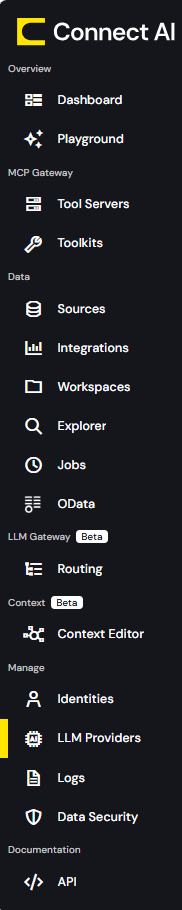
Your navigation menu may look different depending on which features of Connect AI you have.
- Dashboard provides a concise view of information for connections and queries.
- Playground provides an interface to connect your integrations to AI, connect various sources to CData’s MCP server, and to ask Connect AI natural-language questions about your data.
- MCP Gateway allows you to configure and manage MCP tool servers for governed AI agent access.
- Toolkits provides an area to create custom MCP tools for repeatable operations in your AI-driven workflows.
- Sources contains controls for adding and managing data sources.
- Integrations provides assistance with connecting integration tools to Connect AI.
- Workspaces provides assistance with creating and managing Connect AI workspaces and assets.
- Explorer provides the ability to manage queries and derived views for your connections.
- Jobs enables you to create, manage, and run caching and scheduled query jobs.
- LLM Gateway enables you to route requests to your AI providers, scope monthly spending to a project, and issue virtual keys your clients authenticate with.
- Context Editor manages what AI agents know about you and your data to get faster, more accurate answers to your questions.
- Identities enable you to manage the Users, Service Accounts, and Roles and control their access.
- LLM Providers contains credentials for your LLM providers, including API keys.
- Logs contains detailed logs for your Connect AI account.
- Data Security enables you to create rules for protecting sensitive data before it reaches your AI workflows.
- API provides documentation for connecting to data via REST API, OData, or OpenAPI.
- A clickable icon that toggles the display of the left-pane navigation menu:

- A Question Mark icon, which opens this documentation to the Getting Started page.
- A Gear Icon, which opens your Connect AI Settings.
- Your username, which you can click to open a drop-down menu that allows you to contact support or sign out.